Business Central – All-in-One ERP for Modern Enterprises
Unify finance, sales, purchasing and operations on a single cloud platform. Go live faster with Nowara's certified Business Central team.

Transform Customer Relationships with D365 CRM
Close deals faster, retain more customers and drive growth with Microsoft Dynamics 365 Sales & Customer Service — fully integrated with your ERP.

Enterprise Finance & Operations at Scale
Manage complex global financials, supply chains and manufacturing with Dynamics 365 F&O — built for large enterprise and multi-entity organisations.
Certified Microsoft Partner for ERP Consulting
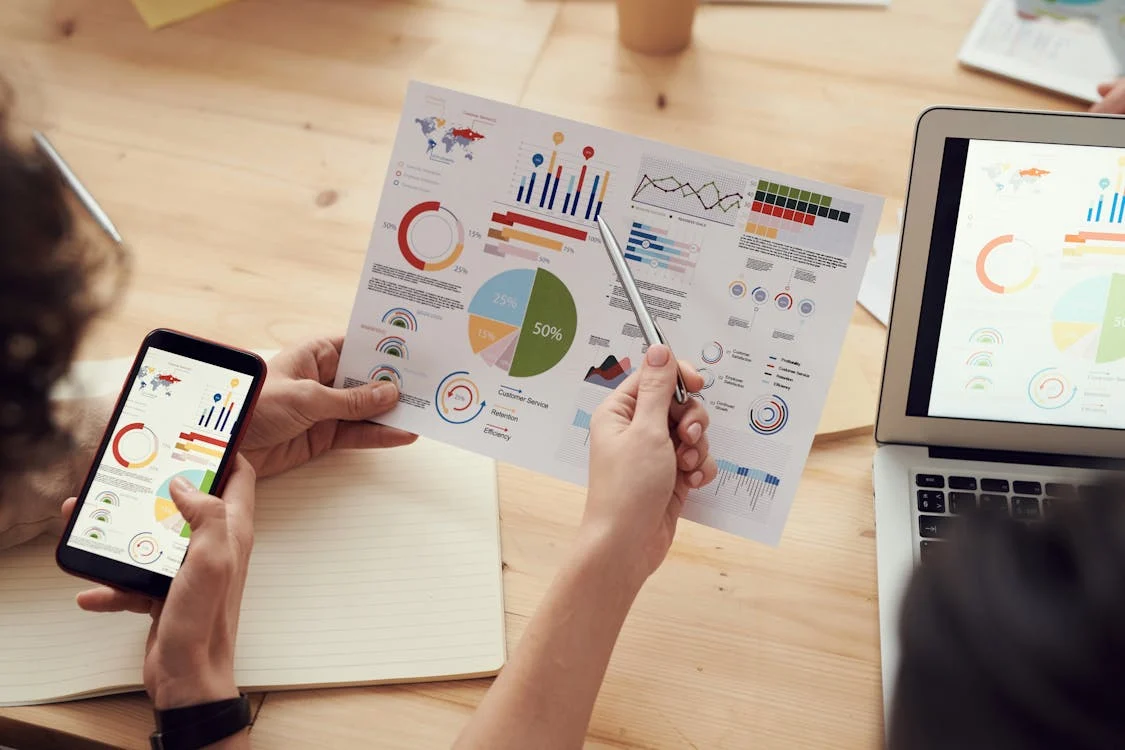
From discovery to go-live — Nowara Infotech delivers end-to-end Dynamics 365 implementation, configuration, training and 24/7 post-live support.
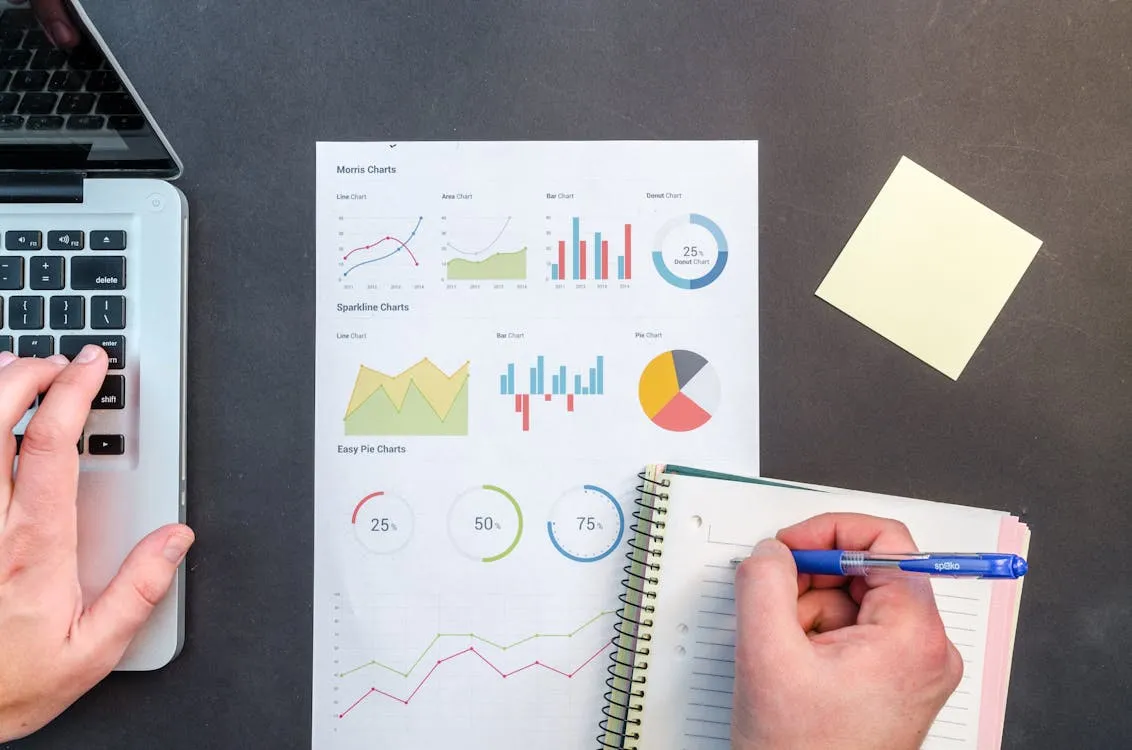
Real-Time Power BI Dashboards for D365
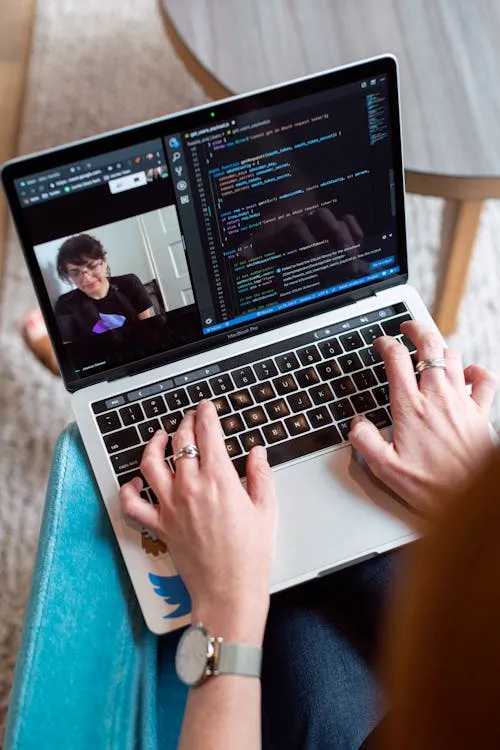
Turn your Business Central and F&O data into actionable insights with embedded Power BI dashboards and advanced analytics reports.
Migrate from AX / NAV to Dynamics 365 Cloud
Nowara's proven migration methodology ensures zero data loss and minimal downtime when upgrading legacy Microsoft ERP systems to the D365 cloud.

Business Central
All-in-one ERP for SMEs — finance, sales & operations in one place.

Finance & Operations
Enterprise-grade F&O management with real-time insights & compliance.

CRM Solutions
Boost sales pipeline and customer engagement with Dynamics 365 CRM.
LS Central
Unified POS + ERP retail solution built on Business Central.
ERP Implementation
End-to-end ERP consulting, configuration & go-live support.
Manufacturing ERP
Discrete, process & hybrid manufacturing on Dynamics 365.
D365 Upgrade & Migration
Seamless upgrade from AX / NAV to the latest Dynamics 365 cloud.
Power BI Analytics
Real-time dashboards and BI reports integrated with D365.
Azure Cloud
Azure cloud hosting optimised for Dynamics 365 workloads.
Application Support
24/7 AMS — keep your Dynamics 365 environment running smoothly.
Custom Development
Bespoke extensions, integrations & ISV add-ons for D365.
Business Central
All-in-one ERP for SMEs — finance, sales & operations in one place.
Finance & Operations
Enterprise-grade F&O management with real-time insights & compliance.
CRM Solutions
Boost sales pipeline and customer engagement with Dynamics 365 CRM.
LS Central
Unified POS + ERP retail solution built on Business Central.
ERP Implementation
End-to-end ERP consulting, configuration & go-live support.
Manufacturing ERP
Discrete, process & hybrid manufacturing on Dynamics 365.
D365 Upgrade & Migration
Seamless upgrade from AX / NAV to the latest Dynamics 365 cloud.
Power BI Analytics
Real-time dashboards and BI reports integrated with D365.
Azure Cloud
Azure cloud hosting optimised for Dynamics 365 workloads.
Application Support
24/7 AMS — keep your Dynamics 365 environment running smoothly.
Custom Development
Bespoke extensions, integrations & ISV add-ons for D365.
We architect
Digital Ecosystems
for modern enterprise.
Expertly deploying Business Central, LS Central, and Power BI to create seamless global operations.
Industry Solutions
Specialized ERP ecosystems that power digital transformation across every vertical.
 Business Central
All-in-one cloud ERP — finance, sales, purchasing & operations unified for growing businesses.
 Dynamics 365 CRM
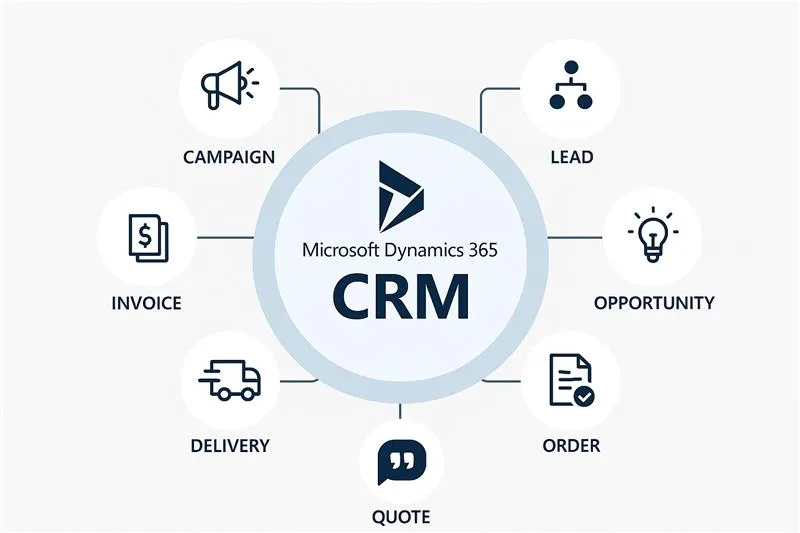
Supercharge sales and customer engagement with Microsoft Dynamics 365 CRM & Sales modules.
 Finance & Operations
Enterprise-grade financial management, supply chain & manufacturing on Dynamics 365 F&O.
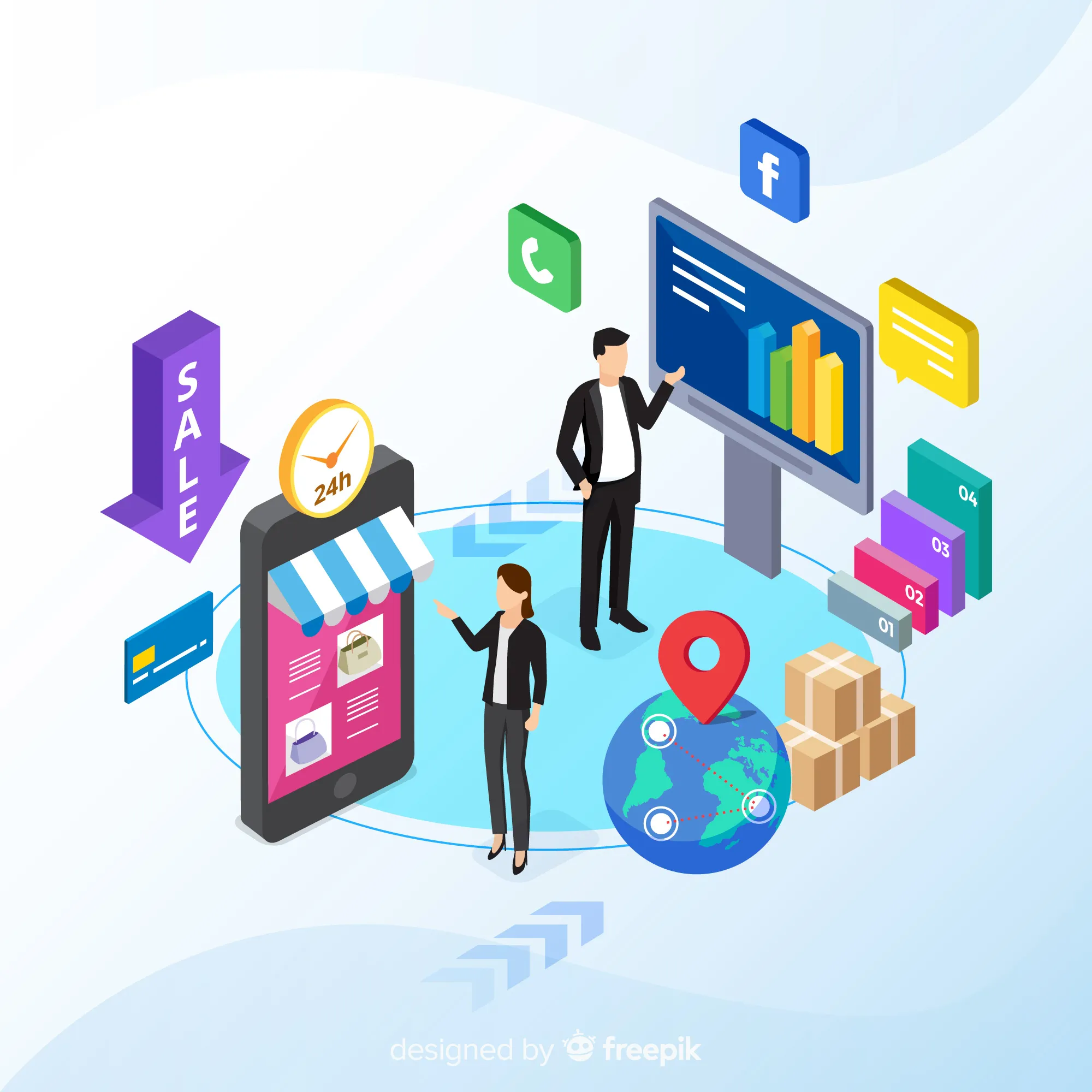 LS Central
The only all-in-one POS + ERP retail solution built natively on Business Central.

 ERP for F&B
Real-time inventory and forecasting to ensure adequate supply.
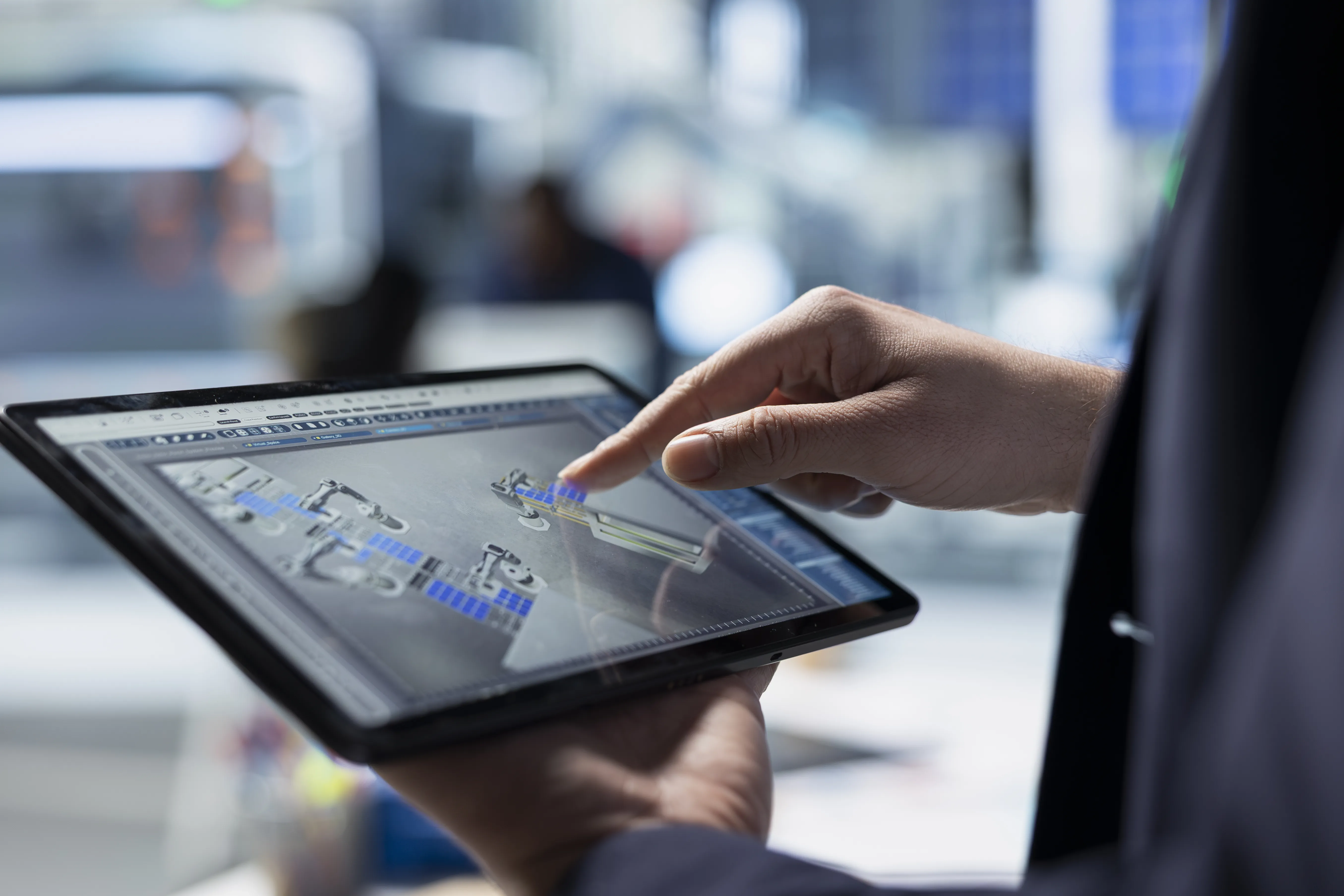
 MS D365 Manufacturing
A centralized method of managing every aspect of operations from production to payroll.
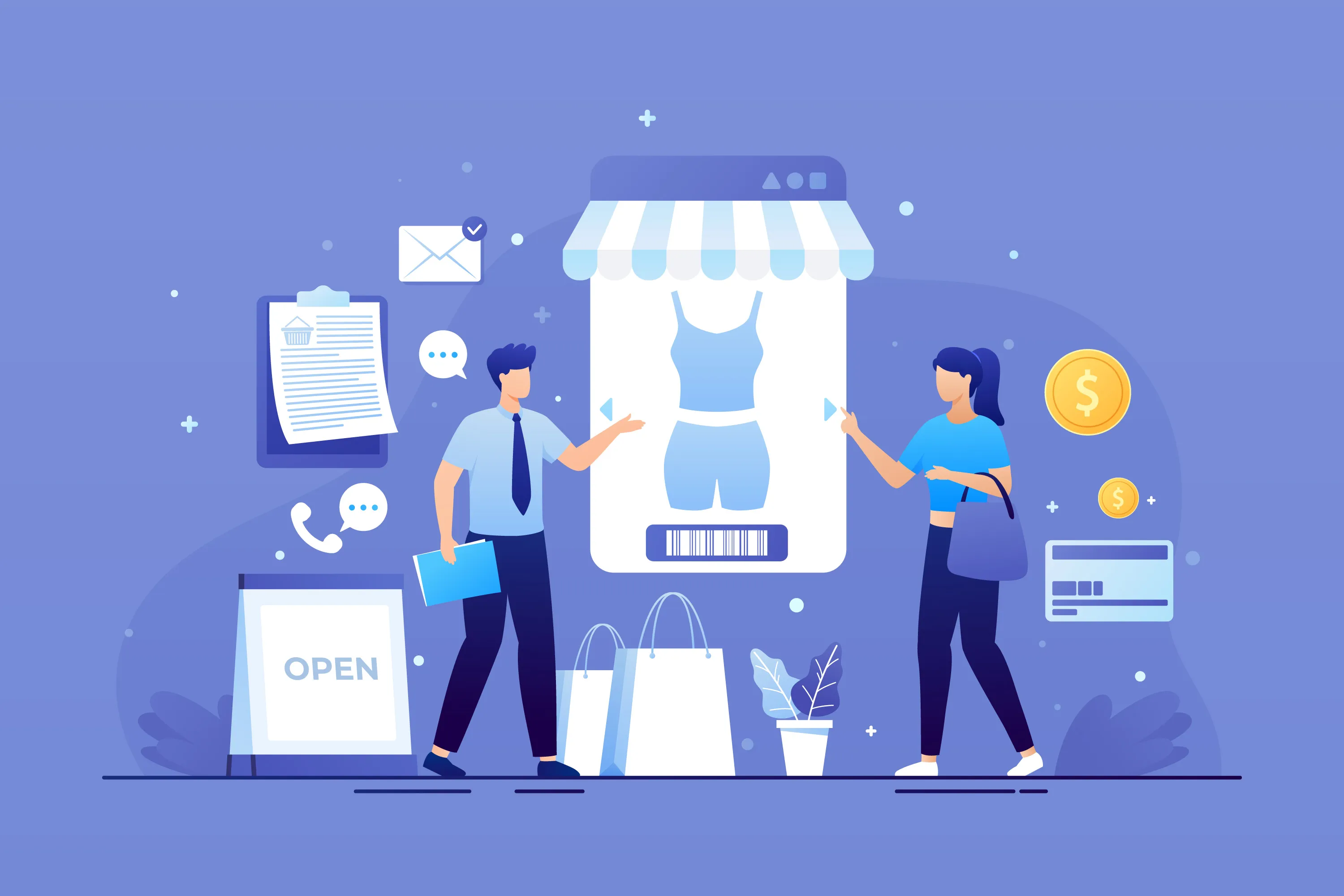
 ERP for Retail
Unified commerce software that handles everything you need in one place.
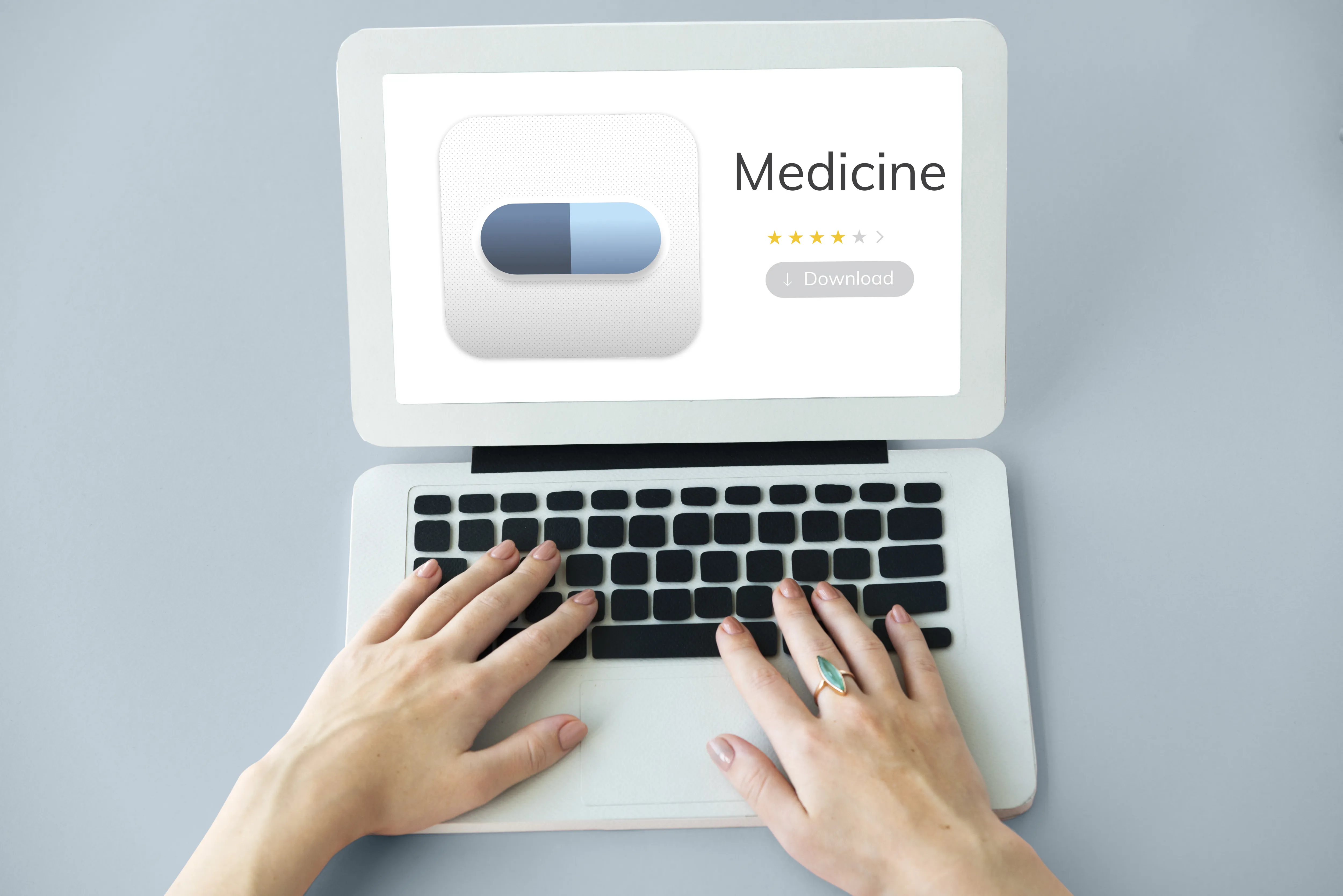
 ERP for Pharmacy
Optimally handle prescriptions and drugs with one unified solution.
 Android Development
Custom mobile solutions built with the latest Android frameworks.
 Software Development
Scalable enterprise applications tailored to solve business challenges.
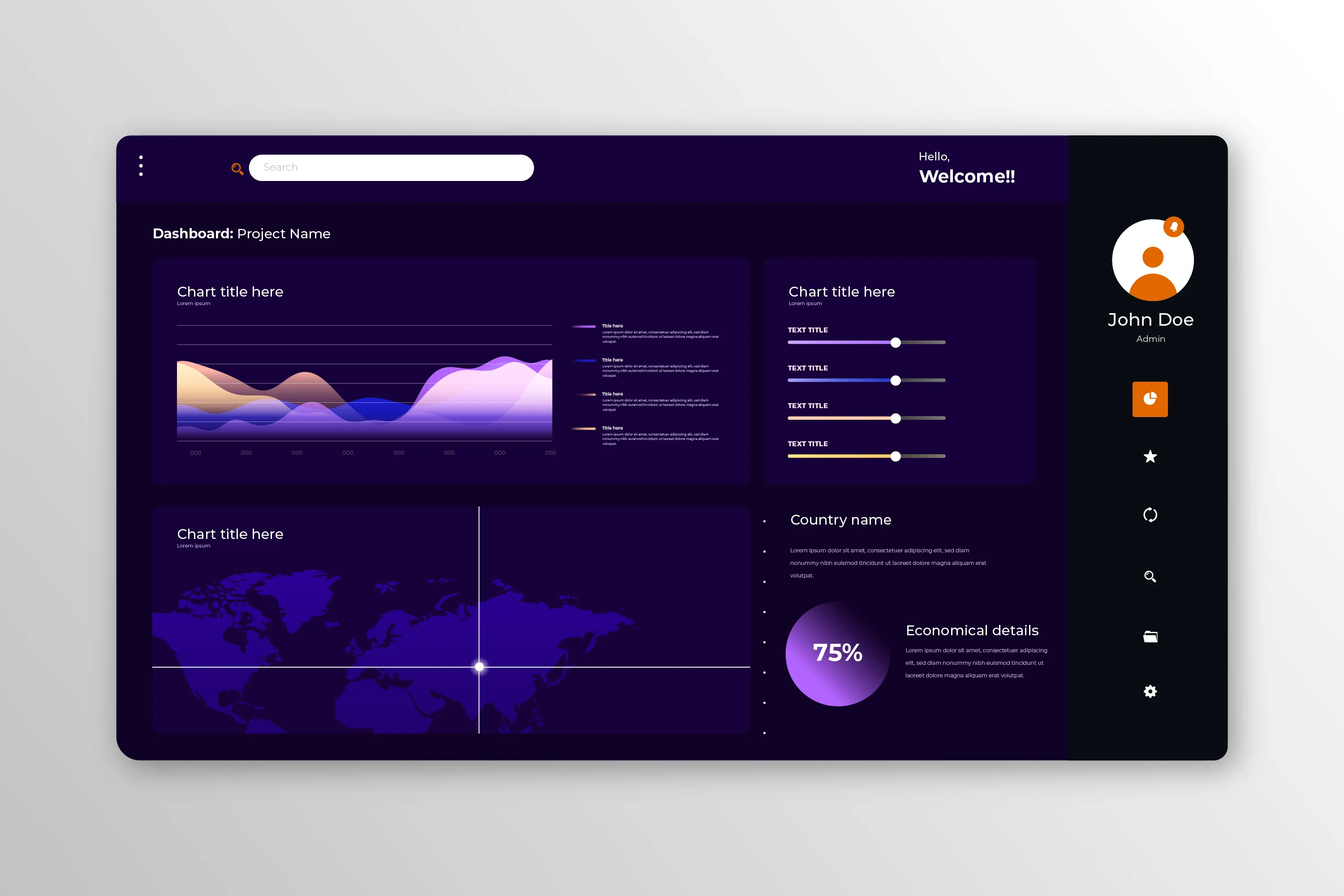 Power BI Retail
Transform retail data into actionable insights with visual dashboards.
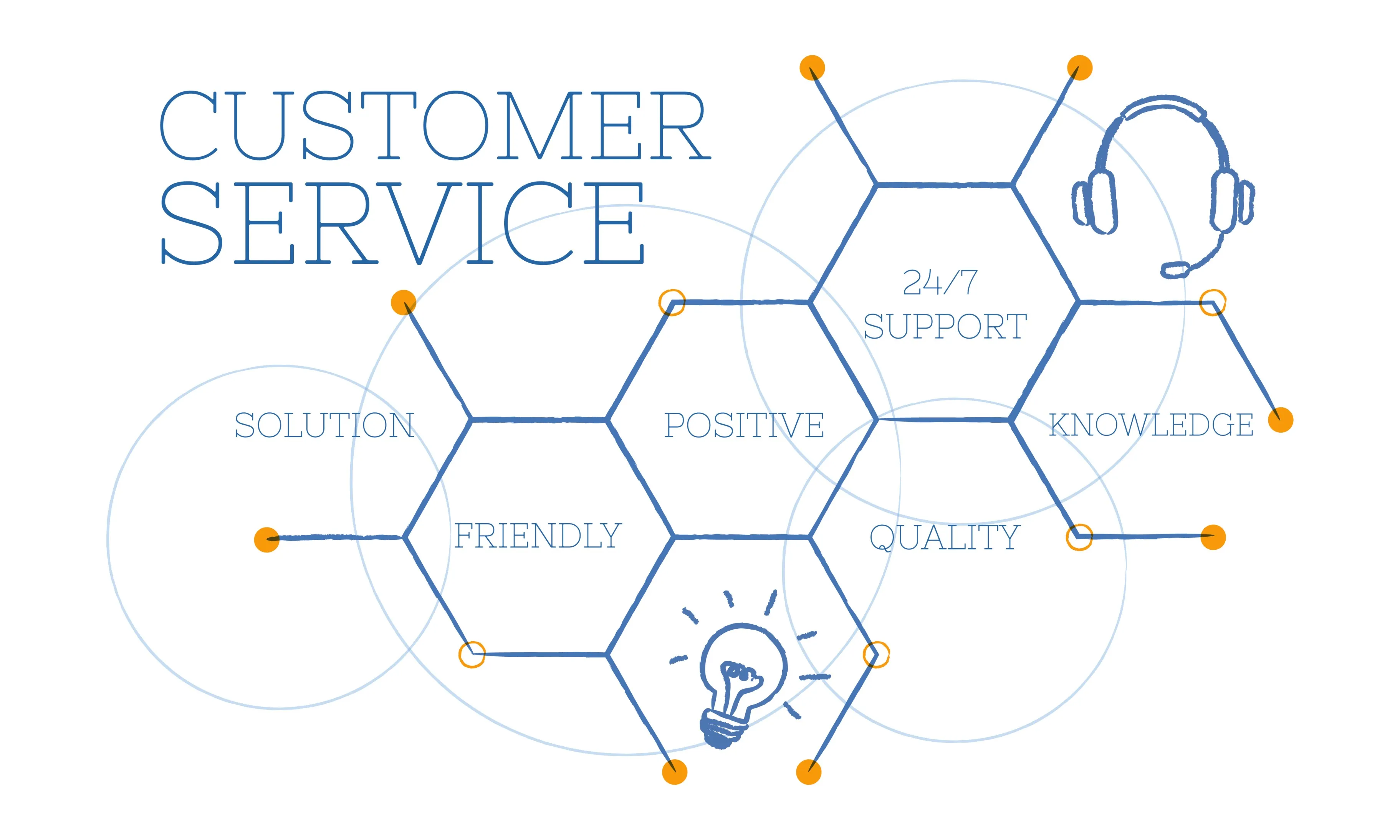
 Add-on Services
Includes HR & Payroll, Plant Maintenance, and Quality Control.
Empowering Enterprise
Digital Ecosystems
From LS Central retail management and mobile innovation to Power BI data intelligence — we build the future of your business.
A trusted stack of Microsoft-certified technologies — built to scale your enterprise operations across every dimension.
Frequently
Asked Questions
Everything you need to know about our ERP and CRM solutions. Can't find what you're looking for?
Still have questions?
Contact our support team →
MS Dynamics 365 Business Central is a comprehensive ERP solution that connects Finance, Sales, and Marketing operations in one unified platform. It enhances decision-making, improves efficiency, and supports scalable business growth with real-time data and AI-powered insights.
LS Central ERP, built on MS Dynamics 365, is an all-in-one retail management solution that integrates POS, inventory, eCommerce, and customer insights—helping retailers improve customer experiences and reduce system silos.
Absolutely. With 30+ years of experience, we serve multiple industries including manufacturing, retail, pharmacy, hospitality, and food & beverages—delivering customized ERP software solutions using Microsoft Dynamics 365 and LS Central.
MS Dynamics 365 for Finance and Operations (F&O) offers advanced capabilities for managing budgets, cash flow, financial reporting, and supply chains. It ensures compliance, improves control, and supports global operations with ease.
Cloud ERP solutions hosted on Azure or AWS provide secure, scalable infrastructure that enables real-time data access, global collaboration, and cost-effective IT management—critical for modern businesses aiming for flexibility and growth.
Nowara Infotech is a trusted Microsoft Dynamics Certified Partner, delivering tailored ERP systems powered by MS Dynamics 365 and LS Central. We offer 24/7 support, global deployment expertise, and solutions that align with your specific business goals.